
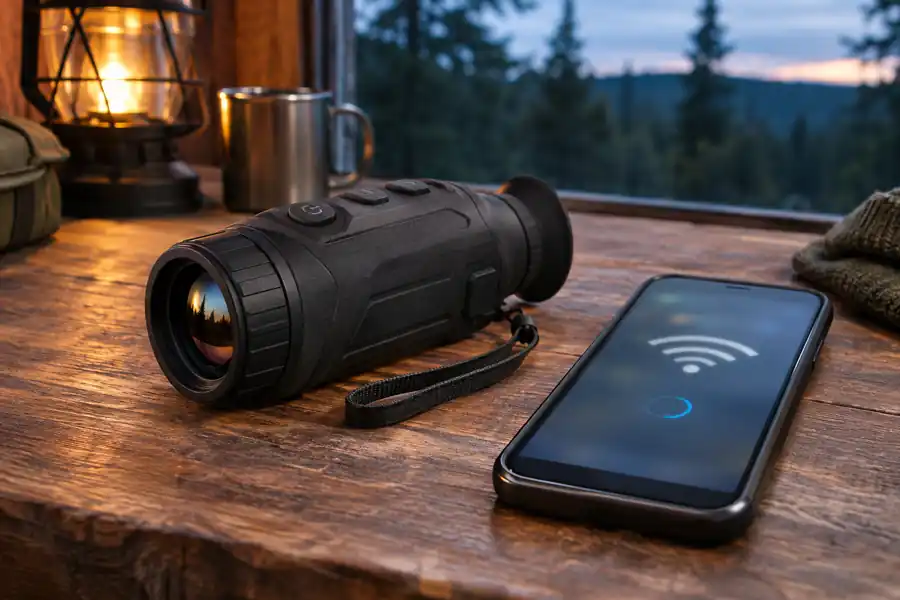
If you’re wondering how to connect a thermal monocular to your phone, first identify the app supported by your exact model, switch on the monocular’s wireless hotspot, join that network in your phone’s Wi-Fi settings, and then open the app. If the phone says the network has no internet, that warning alone does not mean the connection has failed. The monocular is supplying a local link, not household or mobile internet.
This guide focuses on first-time pairing, lost connections and transferring footage. Firmware installation is a separate task. The examples below use the documented Pulsar Axion Compact XG30 and HIKMICRO outdoor-device workflows; neither represents every model or software revision.
Before you pair: identify the exact model and app
Find the full model name on the device, label or information screen. Then use its current manufacturer manual to confirm the app and whether phone connectivity is supported. Wi-Fi capability alone does not guarantee a particular app, remote-control feature or cloud service. On a new phone, install the official app from the manufacturer’s page or the platform’s app store, rather than an APK offered on an unrelated download site.
For a documented example, Pulsar’s Axion Compact XG30 manual specifies Stream Vision 2 for remote viewing, controls and media handling. HIKMICRO’s outdoor hotspot guidance describes connection to HIKMICRO Sight. These are different app ecosystems; pairing instructions and menu labels should not be swapped between them.
The basic connection sequence
- Charge the monocular enough to operate its Wi-Fi function and leave the phone nearby. On the monocular, enable its Wi-Fi or Hotspot setting using the model’s menu.
- Read the device’s current network name and password from its display or manual. If the password was changed, use the currently displayed value rather than the factory example.
- Open the phone’s Wi-Fi settings and select the monocular’s network. Keep the phone connected if it shows “No Internet”; this link is local.
- Open the correct manufacturer app and use its device connection workflow. Complete any device approval or PIN step if the current model requests one.
- Confirm the connected status in the app and, where available, on the monocular’s wireless status icon. Try a simple permitted function, such as displaying its live view or browsing a saved image.
If your phone repeatedly leaves the monocular network for a home router or cellular-assisted Wi-Fi, check the phone’s connection choice while the monocular is active. Do not disable mobile data as an assumed universal fix: some app operations, including obtaining firmware, need an internet route at a different stage.
Why “No Internet Connection” is usually normal
A thermal monocular’s hotspot is generally a local wireless connection between two devices. It does not route the public internet to your phone. Pulsar’s explanation of the no-internet warning explicitly says that this notification does not prevent connecting to the viewer. A successful test is whether the intended device function works, not whether the phone can load an unrelated website through the monocular’s hotspot.
The distinction matters when an app wants to download an update or sync online data. Connecting to the monocular and accessing the internet are two different jobs. For supported update workflows, consult our thermal monocular firmware-update guide rather than improvising a network switch during installation.
If the monocular’s Wi-Fi network does not appear
First confirm that the wireless function really is on. The setting might be labeled Wi-Fi, WLAN or Hotspot, depending on the manufacturer. Some devices turn the hotspot off when power is low; the Axion Compact XG30 manual states that its Wi-Fi shuts off automatically if the battery level is insufficient. Charge the viewer and check its wireless indicator before changing the phone.
Move the devices close together for the initial test, with no walls or large obstructions between them. If you are in a crowded area, try a quieter location. For the XG30 specifically, Pulsar documents both 2.4 GHz and 5 GHz selections and recommends 2.4 GHz when a phone does not support the selected 5 GHz band. That adjustment is model-dependent: do not assume your viewer offers either band or that a similarly named model shares its menu.
Recheck the network’s exact identifier, especially if more than one viewer is nearby. Pulsar describes an AXION network name with a serial-number suffix for the XG30. A phone seeing a neighbor’s router, a saved network with a similar label or an older device entry is not evidence that this monocular’s hotspot is active.
If the phone asks for a password or says it is incorrect
Open the monocular’s wireless settings and read the password currently set there. On a previously paired phone, forget the saved network if its password no longer matches, then join it again. Pulsar’s manual documents a changeable Wi-Fi password; the remedy for a changed password is to replace the phone’s stale saved credential, not to keep guessing.
HIKMICRO’s outdoor post-update instructions make an important distinction: the device may offer a new random hotspot password after an update, while declining that option can preserve the documented existing/default method for that workflow. The password displayed in the device’s menu is the authoritative one. Do not publish screenshots containing the hotspot password or serial number.
Avoid a factory reset merely to solve an ordinary typing error. A reset may change more settings than Wi-Fi and can alter the password you need. If the display and manual disagree, or the device has locked out connection attempts, use the support instructions for the exact device.
If Wi-Fi connects but the app cannot find the monocular
A phone’s Wi-Fi checkmark and an app’s device-connection state are two separate milestones. Verify that the app matches the device generation. For the Axion Compact XG30, the documented app is Stream Vision 2; a generic Stream Vision instruction for an older model should not override that specific manual. Update the phone app through its official store when the manufacturer recommends a compatibility fix.
Check whether the app requests nearby-device, local-network or location-related permissions on your phone. These vary by phone platform and app version; granting a permission should be based on what the app actually asks, not a generic list. Pulsar’s application FAQ addresses location and pairing problems, but its advice is not a guarantee that one phone setting fixes every connection.
Close and reopen the app after confirming the phone is still on the viewer’s wireless network. If the manufacturer documents a phone-side pairing refresh, follow it. Restarting an idle device may be reasonable before any firmware installation begins; never interrupt an active firmware upgrade to troubleshoot app discovery.
If the app displays a live view but some controls are unavailable, check the access level rather than immediately reinstalling it. The Pulsar Axion Compact XG30 manual distinguishes Owner access, which allows full device functions in Stream Vision 2, from Guest access, which permits the real-time video stream only. Treat that as an XG30-specific permission explanation, not a guarantee that another monocular exposes the same roles.
If the wireless connection drops or live view stutters
Begin with distance and interference. Put the phone and viewer close together, remove obstacles, and see whether the issue recurs at a steady position. The Axion Compact XG30 manual lists interference and barriers as connection factors. If the viewer has a documented band choice, test the alternate band with a fresh connection, recording which setting improved the situation.
Next isolate battery and workload. A weak battery may disable wireless operation on supported models, while video streaming and recording can affect overall power consumption. Our thermal monocular battery-life guide explains the difference between a manufacturer’s stated runtime and an outing that uses wireless features continuously.
Do not mistake an intermittent live-view stream for a fault in the thermal detector. If the eyepiece view is stable but the phone stream stutters, investigate connectivity first. If the image itself looks blurred or uneven, work through our focus and calibration guide instead.
Downloading recordings and understanding what gets transferred
Once paired, look for the app’s device album or media view, and identify whether you are browsing files stored on the monocular or copies already saved on your phone. Open a transferred file locally to confirm the copy before you remove anything from the device. A thumbnail in an app is not proof that a complete, usable copy has been exported.
Wi-Fi is not always the best transfer route for a large collection. The Axion Compact XG30 manual also documents a USB File access mode; however, USB charging, file access and video-streaming modes are distinct. Confirm what your exact unit supports before plugging it into a computer or attempting to remove files. For bird-observation footage, see our guide to recording birds with a thermal monocular for context, steady framing and cautious interpretation of recorded evidence.
An efficient five-minute troubleshooting record
When the basic steps fail, take a note that separates what you observed from what you suspect:
- Exact model and firmware version, plus the name and version of the installed phone app.
- Phone platform and whether the device’s hotspot appears in Wi-Fi settings.
- Whether the phone accepts the current password and remains associated with the hotspot.
- Whether the app sees the connected viewer, and the exact message if it does not.
- Battery state, distance between devices, selected Wi-Fi band if available, and whether the failure is repeatable.
This record lets manufacturer support distinguish a network problem from app compatibility or a device fault. Before changing settings further, preserve recordings you need. Do not post a live hotspot password or private account details in public troubleshooting forums.
Common questions
Can I use the thermal monocular without my phone?
Many handheld thermal viewers provide their basic viewing functions on-device, but the answer depends on the model and function. Phone connectivity may be optional for observation while useful for remote viewing, recording management or updates. Check the actual manual before buying a device on the assumption that all functions work offline.
Does connecting to the monocular use mobile data?
Local viewing over the monocular’s hotspot is not itself an internet download. Cloud features, app downloads and firmware packages may use a separate internet connection. Watch which connection each step requires, particularly when the phone reports no internet on the viewer’s Wi-Fi.
Should I reset the device if the app cannot connect?
Not as a first step. Confirm the active hotspot, correct current password, supported app, phone permissions and any documented band setting. A reset can change working preferences and Wi-Fi credentials. Use it only when the manufacturer’s model-specific recovery instructions justify it.
The practical takeaway
Treat pairing as three tests: the monocular broadcasts a hotspot, the phone joins that network, and the supported app recognizes the device. Solve the first failed test rather than changing every setting at once. Keep the exact model’s manual close: the Pulsar and HIKMICRO examples show why app names, Wi-Fi bands, passwords and post-update behavior cannot be assumed across brands.

Elliot Vantage is an optics enthusiast and the editor behind Optic Horizon, covering monoculars, binoculars, thermal optics, and related outdoor gear. He researches manufacturer documentation, optical specifications, product features, pricing, and use-case differences to help readers understand their options and choose equipment that fits their needs.